
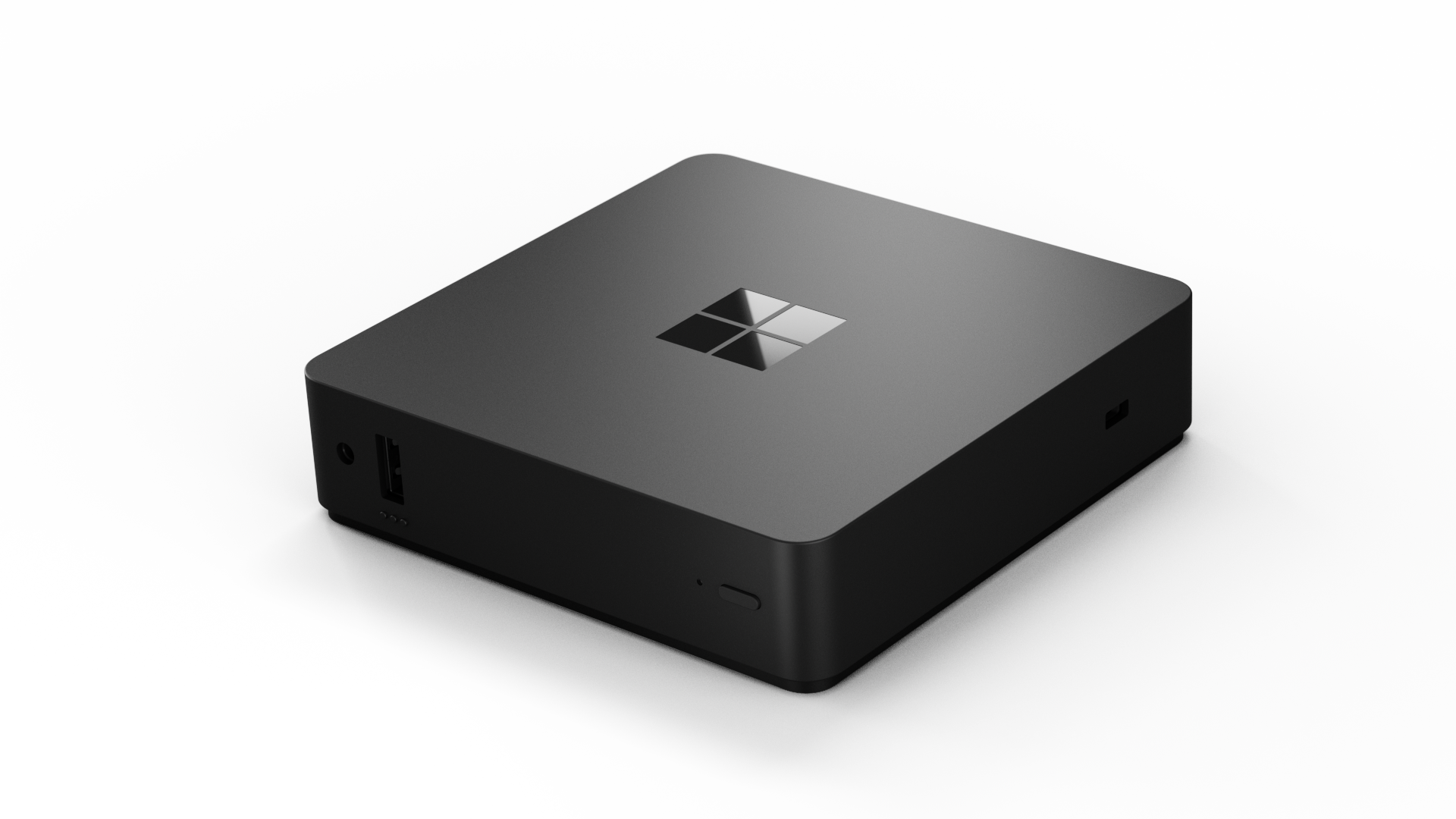
Frequently asked questions about the Windows 365 Link device
1) What is Windows 365 Link?
Windows 365 Link is a Microsoft Cloud PC client that allows users to connect directly to their Cloud PC virtual machine through the Windows 365 service.
2) What is Windows 365 Link intended for?
It is intended for organizations that use (or are deploying) Windows 365 and want a simple, managed endpoint for Cloud PC use, particularly for shared or fixed workstations.
3) How does Link differ from a traditional PC?
Link does not have local applications or local data storage in the same way as a traditional PC; it is designed to connect the user to a Cloud PC.
4) Do I need a Windows 365 license for Link to work?
Yes. The requirements for Windows 365 Link include a Windows 365 license for Cloud PC.
Compatibility and limitations
5) Does Windows 365 Link support Azure Virtual Desktop (AVD)?
No. Link is designed specifically for use with Windows 365 and does not support other virtual desktop services, such as Azure Virtual Desktop.
6) Can I use services other than Windows 365 with Link?
Windows 365 Link is designed specifically for the Windows 365 Cloud PC connection and is not intended for use with other virtual desktop services (for example, it does not support Azure Virtual Desktop)
7) Does Windows 365 Link work in offline mode?
No. Because it relies on a cloud connection, a working internet connection is required, and you cannot work on the device in offline mode.
Implementation and management
8) How do you set up Windows 365 Link for the first time?
The device goes through the out-of-box experience (OOBE), during which it connects to Microsoft Entra and registers with Microsoft Intune.
9) Does the device automatically connect to Entra ID and Intune?
Yes—during the out-of-box setup (OOBE), the device is connected to Entra and enrolled in Intune.
10) What are the requirements for deploying Windows 365 Link?
The requirements include: a Windows 365 Link device, organization management through Intune, and a Windows 365 license for Cloud PC.
11) Can IT manage Link devices in Intune just like other devices?
Yes, system administrators use Intune to manage Link devices alongside other devices.
Information security
12) Are files or data stored on a Windows 365 Link device?
No, the device does not have local storage for data.
13) Can users install apps on a Link device?
Local apps cannot be installed on a Link device; instead, they are hosted on the Windows 365 service. -> Secure-by-design
14) Does the device have a local admin user?
No. Windows 365 Link does not have a local admin user, and users do not have local administrator privileges on the device.
15) What security features does Link have?
Windows 365 Link includes, among other things, TPM 2.0, Secure Boot, virtualization-based security (VBS), HVCI, BitLocker drive encryption, strict application execution control, basic security settings enabled by default, and the Microsoft Defender EDR sensor
Peripheral devices and connections
16) What ports does the Windows 365 Link have?
The Windows 365 Link has USB-A, USB-C, DisplayPort, HDMI, Ethernet, a power port, and a 3.5 mm audio jack.
17) How many monitors does Link support?
Windows 365 Link supports up to two 4K monitors (via HDMI, DisplayPort, and USB-C connections).
18) Does the Link support Wi-Fi and Bluetooth?
Yes: Wi-Fi 6E and Bluetooth 5.3.
19) What peripherals does Link support?
Windows 365 Link supports USB and Bluetooth peripherals, such as a keyboard, mouse, headphones, and camera.
20) Does Link support FIDO2 keys or NFC?
Yes. Windows 365 Link supports FIDO2 security keys (USB) and NFC when used with a compatible NFC reader.
21) Can the device be mounted behind a monitor (VESA)?
Yes. The device has a VESA 100 mounting bracket on the bottom, so it can be mounted behind a monitor.
Performance and user experience
22) How quickly does Link connect to Cloud PC?
Windows 365 Link is designed to connect to the Windows 365 environment in seconds, allowing users to quickly access their own Cloud PC desktop.
23) How do video and Teams meetings work?
The device features media optimizations that allow web-based multimedia content to be processed and played back locally to ensure a smooth, high-quality user experience.
Updates and lifecycle
24) Does Windows 365 Link update automatically?
Yes. Operating system updates are installed automatically outside of business hours when the device is plugged in and turned on (including when in standby or sleep mode).
25) How long will Link receive updates and support?
The device will receive driver, firmware, and operating system updates for at least six years after its initial release.
26) Does the device have a fan?
No, it does not. The Windows 365 Link is a fanless device, meaning it does not have a fan at all.
In practice, this means that the device operates silently and has no moving cooling parts.
Purchasing and delivery
27) Where can I purchase a Windows 365 Link?
You can purchase a Windows 365 Link device from an authorized Microsoft reseller. Cloud PCS supplies devices to organizations in Finland both as part of the Cloud PC service and as standalone device deliveries. For more information on the device’s features and system requirements, visit Microsoft’s Windows 365 Link page.
28) Is Cloud PCS an Authorized Windows 365 Link reseller in Finland?
Yes. Cloud PCS has been selected as a Windows 365 Link Authorized Reseller in Finland.
Are you considering Windows 365 Link devices for your organization’s workstations? Cloud PCS provides Windows 365 Link devices both as part of the Cloud PC service and as standalone hardware purchases. Contact us for information on device procurement, deployment, and management.
